Identity stores
Identity stores make it easy to organise, group, and manage identities in VO. Each identity store represents a source of identities, such as your organisation’s directory or a manually managed group.
What is an identity store?
An identity store is a way to organise and group identities in VO. It also lets you manage related settings such as authentication options and application labels for each store.
An identity store can represent:
- Your organisation’s main directory (e.g. Entra ID, Azure AD)
- A manually managed set of users
Each identity store has a unique identifier and a human-friendly name for easy recognition.
Why identity stores?
- Group identities by source and type
- View information such as activity for each store
- Configure authentication and application labels per store
- Support multiple identity sources (e.g. multiple Entra tenants)
- Revoke credentials for identities in a store
- Resend or cancel remote issuances for identities in a store
- Securely and easily manage secrets for each store
How to set up and configure
You can manage identity stores in two ways:
- Composer Identity stores page
- Via the API
Note: The Composer navigation and page titles use Identity stores; the underlying URL path (
/issuee-stores) still uses the older Issuee stores naming.
To make changes to identity stores, you will need to be a member of the Instance admin user role.
Creating an identity store
You can create and manage identity stores from the Composer Identity stores page.
Steps:
-
Go to the Identity stores page in Composer.
-
Click the + sign or Add button.
-
Fill in the required details based on the store type:
For Entra type:
- Name: Human-friendly label for the store
- Identifier: Tenant ID (from your Entra/Azure AD directory)
- Type: Select "Entra"
- Graph Client Credentials: (optional) Client ID and secret for Graph API integration
Note: The Graph client is an app registration in Microsoft Entra, which this issuee store uses to securely access Microsoft Graph and retrieve user information from the directory. Enter the Client ID and Client Secret from the app registration.
- Enable authentication: Toggle if issued tokens from this tenant should be able to authenticate with VO API.
For Manual type:
- Name: Human-friendly label for the store
- Identifier: A unique identifier for this store (e.g. "manual")
- Type: Select "Manual"
- (No authentication or Graph credentials required)
-
Click Save to create the identity store.
To create a new identity store via the API, provide:
- Name: A human-readable name for the store (this replaces the previous issuer label configs)
- Type: The source type (e.g. Entra, Manual)
- Authentication enabled: Use the
isAuthenticationEnabledsetting to allow tokens issued from this tenant to be authenticated with the VO APIs
Example GraphQL mutation:
mutation CreateIdentityStore($input: IdentityStoreInput!) {
  createIdentityStore(input: $input) {
    id
    name
    identifier
    type
    isAuthenticationEnabled
  }
}
Example variables:
{
  "input": {
    "identifier": "your-tenant-id",
    "name": "Your Organisation Name",
    "type": "Entra",
    "isAuthenticationEnabled": true
  }
}
Editing an identity store
To edit an identity store:
-
In Composer: Go to the Identity stores page, find the store you want to edit, and open it. Click Edit in the page header, then update the store across the Basics, Connection, and Features tabs, and click Save.
-
Via the API: Use the
updateIdentityStoremutation, which works similarly to the creation mutation. Provide the store ID and any fields you want to update.
Example GraphQL mutation:
mutation UpdateIdentityStore($id: ID!, $input: UpdateIdentityStoreInput!) {
  updateIdentityStore(id: $id, input: $input) {
    id
    name
    type
    isAuthenticationEnabled
  }
}
Example variables:
{
  "id": "identity-store-id",
  "input": {
    "name": "Updated Organisation Name",
    "type": "Entra",
    "isAuthenticationEnabled": false
  }
}
Suspending an identity store
Suspending an identity store lets you disable its features without deleting it.
When a store is suspended:
- The store itself is disabled for authentication and management actions (like adding new identities).
- Identities and identity stores are decoupled — identities created under a suspended store remain active and visible in the list of all issuees.
- You can still issue credentials to identities linked to a suspended store.
- If you view a suspended store, it will show as [suspended] in the UI.
- Suspension does not revoke any credentials that have already been issued to identities linked to the store.
How to suspend an identity store:
-
In Composer: Go to the Identity stores page, find the store you want to suspend, and open it. Click Suspend in the page header and confirm the action.
-
Via the API: Use the
suspendIdentityStoremutation. Provide the store ID you want to suspend.
Example GraphQL mutation:
mutation SuspendIdentityStore($id: ID!) {
  suspendIdentityStore(id: $id) {
    id
    suspendedAt
  }
}
Example variables:
{
  "id": "identity-store-id"
}
To resume normal functionality, simply resume the store:
- Via the API:
Use the
resumeIdentityStoremutation.
Example GraphQL mutation:
mutation ResumeIdentityStore($id: ID!) {
  resumeIdentityStore(id: $id) {
    id
    suspendedAt
  }
}
Example variables:
{
  "id": "identity-store-id"
}
Automatic identity store creation
Identity stores are created automatically when saving an identity with a new issuer key.
Currently, only two types of stores are supported: Entra and Manual. The store type is determined by the issuer value:
- If the issuer is a GUID or tenant ID, an Entra store will be created.
- Any other issuer value will result in a Manual store.
When a new identity is created, it will automatically be grouped into the correct identity store based on this logic. This behaviour may change in the future as support for additional store types is introduced.
Configuring Entra features
Entra identity stores support a set of optional features. Once a store's Graph connection is verified, open the store and go to the Edit page's Features tab to turn a feature on and configure it.
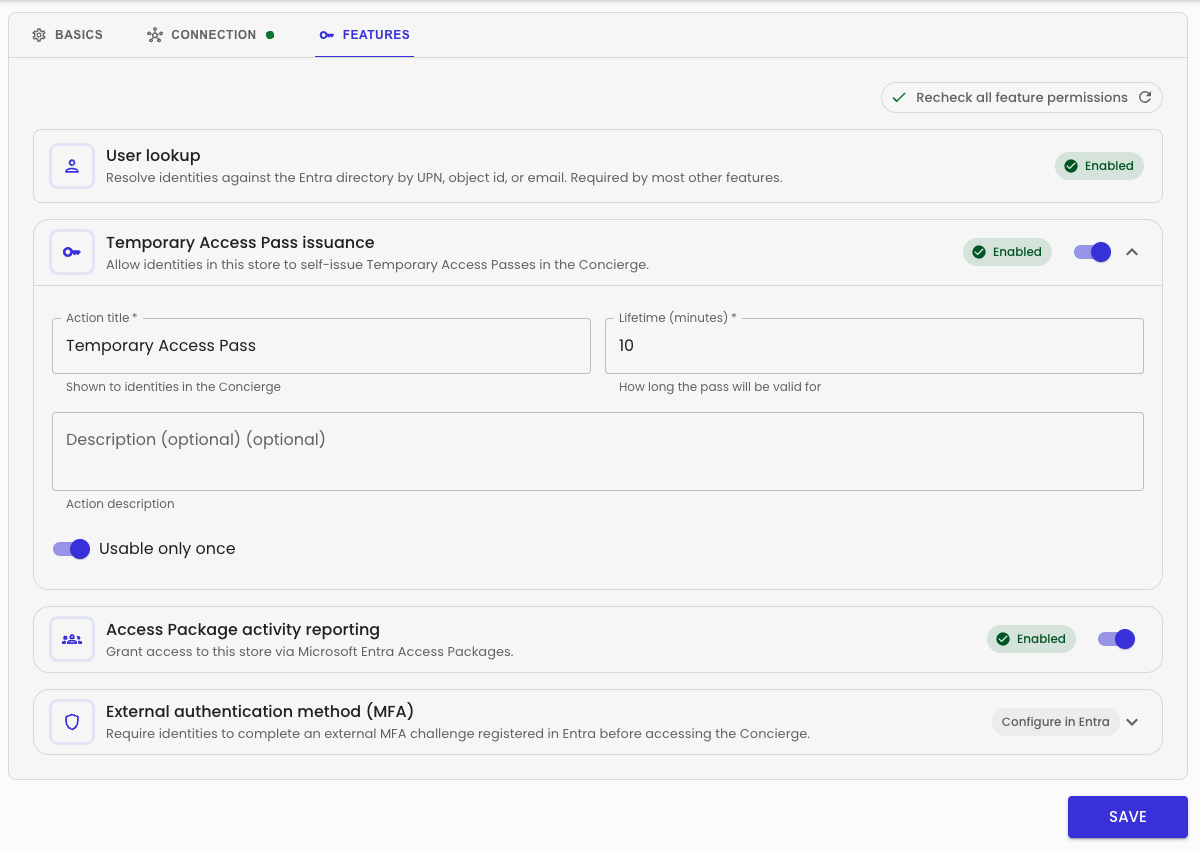
| Feature | What it does |
|---|---|
| User lookup | Resolves identities against the Entra directory by UPN, object ID, or email. Required by most other features. |
| Temporary Access Pass issuance | Lets identities in this store self-issue a Temporary Access Pass in the Concierge. |
| Access Package activity reporting | Grants access to this store via Microsoft Entra Access Packages. |
| External authentication method (MFA) | Requires identities to complete an external MFA challenge registered in Entra before accessing the Concierge — see Entra ID External Authentication Method. |
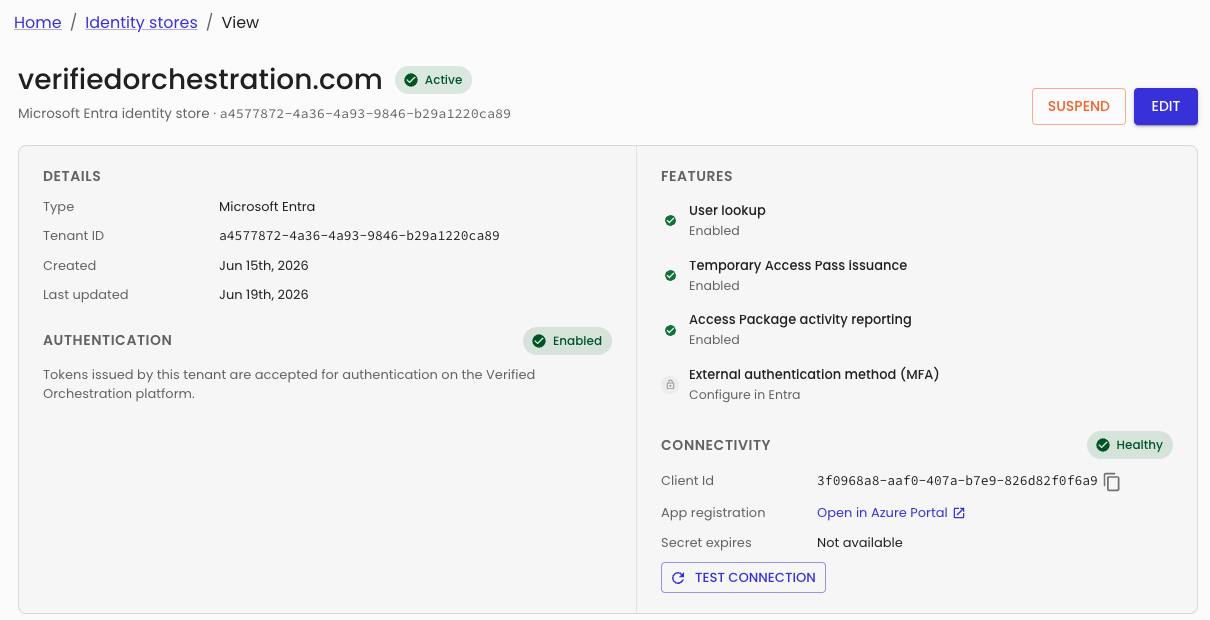
The identity store's View page shows the current status of each feature (for example, Enabled, Disabled, or a failing/missing-permissions state) in its Features panel.
Adding an Identity to Identity Stores
You can create identities in VO using either Composer or the API.
In Composer:
- Go to the Identity stores page, find the store you want to add an identity to, and open it.
- Click the + sign above the identities table.
- Fill in the form with the required details.
- If your identity store is configured with a Graph client, the system will automatically look up users in your integrated Graph API.
- Select a user from the lookup results to automatically fill out the form.
- Click Save to create the identity.
Via the API:
When you create an identity, the system will automatically create and assign it to the correct identity store based on the issuer value.
Example GraphQL mutation:
mutation SaveIdentity($input: IdentityInput!) {
  saveIdentity(input: $input) {
    id
    name
    issuer
    identifier
    identityStoreId
  }
}
Example variables:
{
  "input": {
    "issuer": "your-tenant-id",
    "identifier": "user-object-id-or-unique-identifier",
    "name": "User Name"
  }
}
Application labels
Application labels help users easily identify which applications are issuing or requesting credentials. Labels are managed per identity store, making it simple to organise and present apps in a user-friendly way.
You can add or update application labels in two ways:
In Composer: Go to the Identity stores page, select the store, and use the application labels section on the store's View page to add or edit labels. Just provide the app's object ID and the label you want to display.
Via the API:
You can view all configured labels for a store using the applicationLabelConfigs query:
query ApplicationLabelConfigs($identityStoreId: ID!) {
  applicationLabelConfigs(identityStoreId: $identityStoreId) {
    id
    identifier
    name
  }
}
Example variables:
{
  "identityStoreId": "your-identity-store-id"
}
To set or update application labels, use the setApplicationLabelConfigs mutation.
This mutation replaces all existing labels for the store with the new list you provide.
mutation SetApplicationLabelConfigs($identityStoreId: ID!, $input: [ApplicationLabelConfigInput!]!) {
  setApplicationLabelConfigs(identityStoreId: $identityStoreId, input: $input) {
    id
    identifier
    name
  }
}
Example variables:
{
  "identityStoreId": "your-identity-store-id",
  "input": [
    {
      "identifier": "00000000-0000-0000-0000-000000000000",
      "name": "Your app name"
    },
    {
      "identifier": "11111111-1111-1111-1111-111111111111",
      "name": "Another app"
    }
  ]
}
Note: The API uses a "set all" strategy—when you update application labels, you provide the full list for the store, and it replaces any previous labels.
Managing secrets
Secrets are managed securely for each identity store, using Azure Key Vault.